Advanced Skill Capabilities in Lizzy

Lizzy Smart
March 19, 2026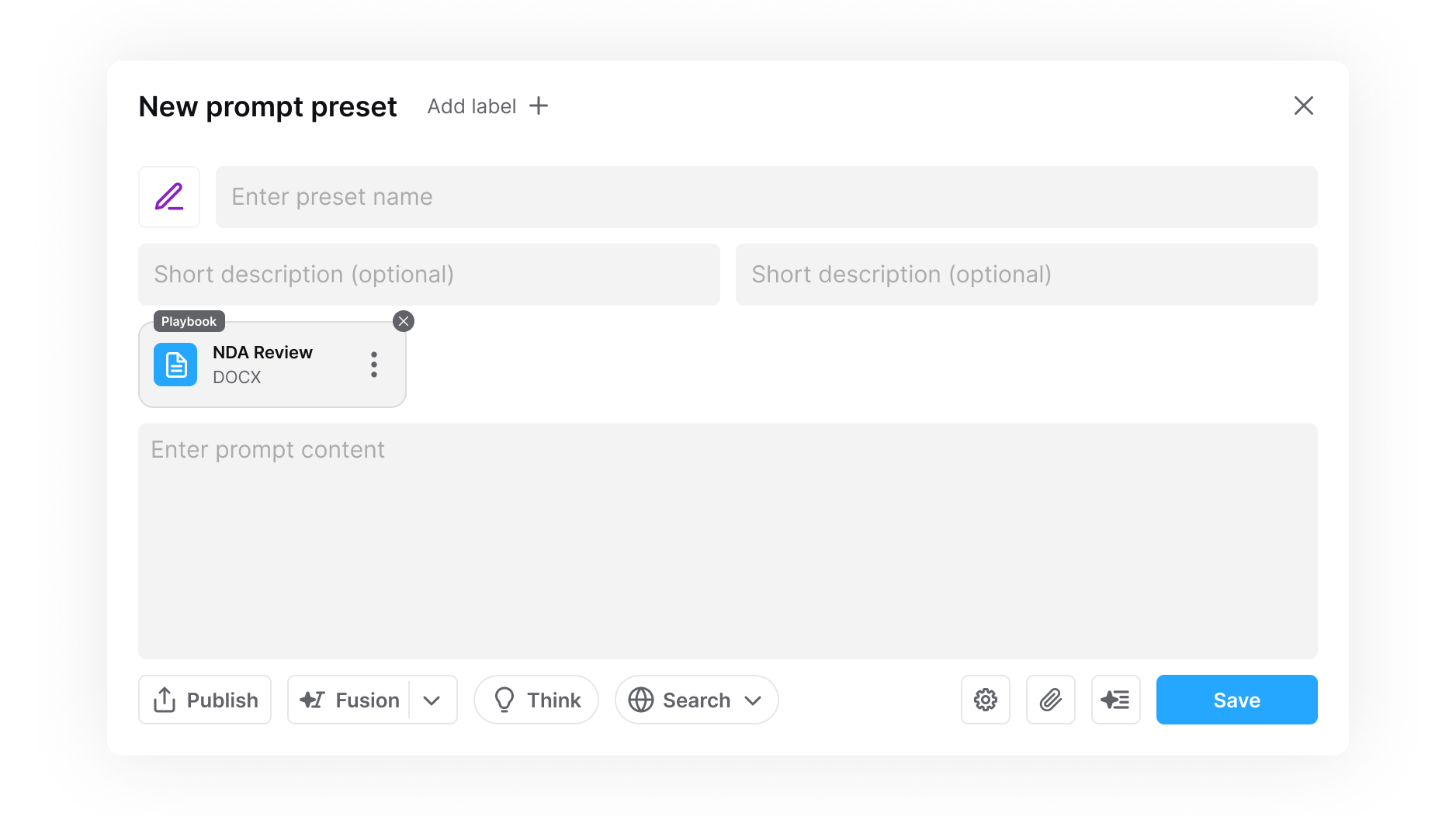
Basic presets helped automate simple tasks. Advanced preset capabilities take this further - allowing presets to control how Lizzy reasons, use research tools, attach structured knowledge, and share workflows across your organization.
New tools for building smarter workflows
Presets in Lizzy allow you to save reusable prompts and workflows so tasks can be performed with a single click.
With the latest update, presets now support advanced capabilities that give you much more control over how they behave, what resources they use, and how they can be shared with your team. These new capabilities allow presets to function more like structured workflows rather than simple prompts. Below is an overview of what has been added and how to use these new features.
Advanced Model and Execution Settings
Presets can now define how the AI model should operate when executing a task. You can configure the model behavior directly inside the preset, allowing different workflows to run with different reasoning modes.
For example, a preset can now specify:
Model selection
Choose which model should run the preset.
Processing modes
- Fast mode - optimized for speed and quick responses
- Think mode - allows the model to reason more deeply and produce more structured outputs
- Agent mode - breaks complicated work into sub-tasks, executes them sequentially, with consistent depth.
This allows you to tailor presets for different types of work, from quick tasks to more complex analysis.
Search and Research Capabilities
Presets can now include built-in research tools.
You can allow the preset to use:
Search
Standard web search to retrieve relevant information.
Deep Search
More extensive research across multiple sources.
This is useful for workflows that require external information, such as:
- researching legal context
- comparing market practices
- analyzing regulatory information.
Advanced Execution Controls
A new advanced settings panel allows you to fine-tune how presets behave when they run.
These controls include:
Parallel processing
Split long inputs into smaller chunks and process them in parallel to reduce runtime and improve consistency on per-paragraph tasks. Best for tasks where paragraphs are independent (e.g., spellcheck, PII extraction, defined term extraction). Not recommended where cross-paragraph dependencies matter (e.g., contract review, issue spotting, red-flag analysis).
Ignore chat history
Run this preset only on the selected text or file, and ignore prior chat messages and other chat context. Consider using this when the instruction should apply solely to the chosen input - for example, summarizing a specific document where other documents in the chat are irrelevant.
Require context selection
If multiple files or candidate inputs exist in the chat, prompt the user to choose the specific file or text the preset should run on before execution.
Block on empty chat
Prevent the preset from running unless context is provided (uploaded document or other input).
Hide preset instruction in chat
Hide the preset content (instructions, attached files, etc.) inside the chat. If enabled, only the preset title is shown.
Attaching Files with Structured Roles
Presets can now include attached files that provide structured context to the model. When uploading a file, you can specify how Lizzy should interpret it.
Files can be labeled as:
Template
A standardized document that serves as a starting point, intended to be customized with specific user-provided information.
Playbook
A practical guide for reviewing or drafting a legal document. Playbooks may define policies, fallback positions, revision guidelines, or drafting instructions.
Knowledge
An authoritative knowledge source such as policies, guidance documents, prior decisions, specifications, or internal documentation.
Other
Additional files that provide context.
Sharing Skills Across Your Organization
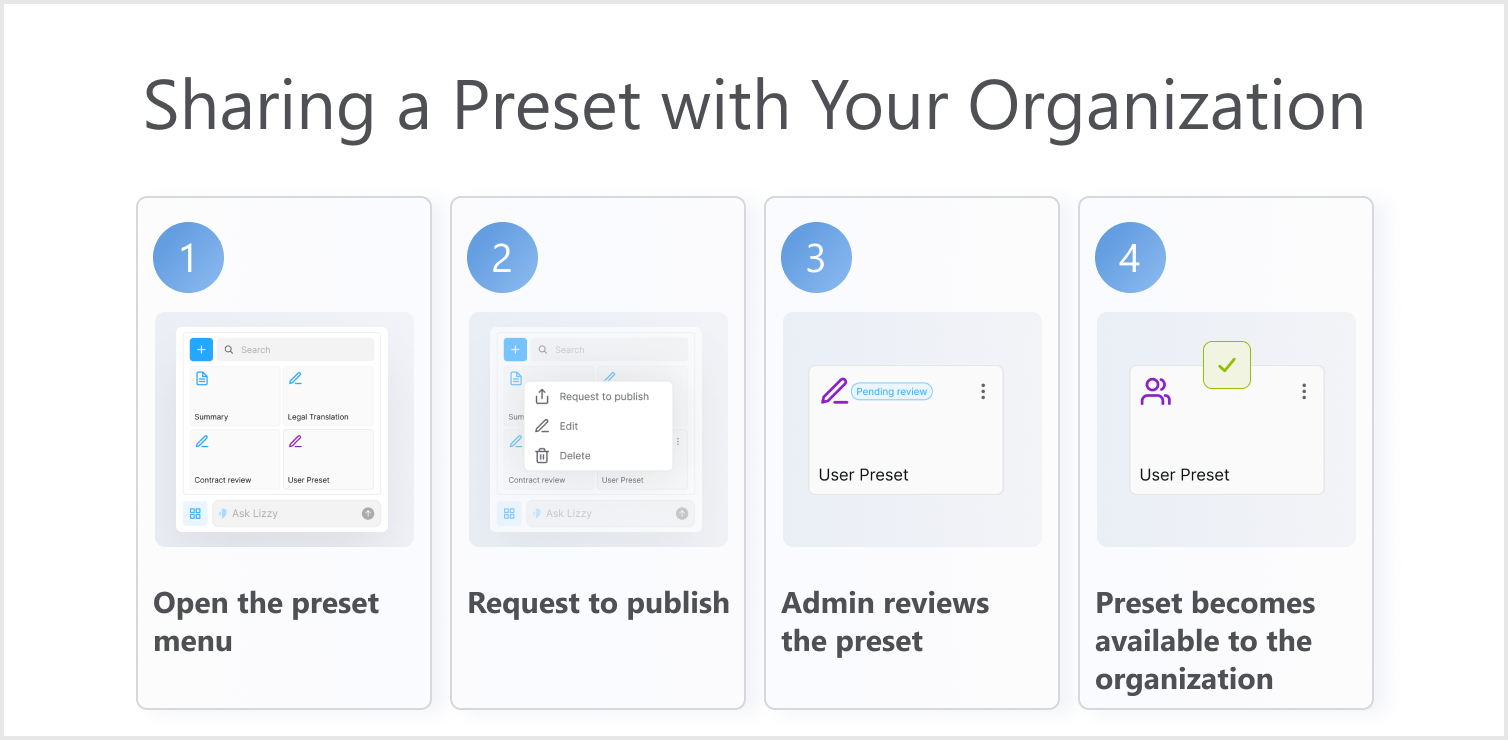
Presets can now be shared with your entire organization, allowing teams to build and reuse common workflows. If you have created a useful preset - for example for contract review, clause extraction, or translation - you can request to publish it so others in your organization can use it as well.
To share a preset:
- Open the preset menu.
- Click Request to Publish.
The preset will be sent to your organization administrator for review. Once approved, the preset becomes available to everyone in the organization's preset library. This allows teams to gradually build a shared collection of trusted workflows, making it easier to reuse best practices across the organization.